1.2 Workspace Layout & Dashboard
WhoEvery bank user
WhereEvery screen after sign-in
PermissionNone for the layout. The dashboard cards depend on your role
Every screen in SaakhSetu uses the same frame: a header across the top, a sidebar on the left and a work area in the middle.
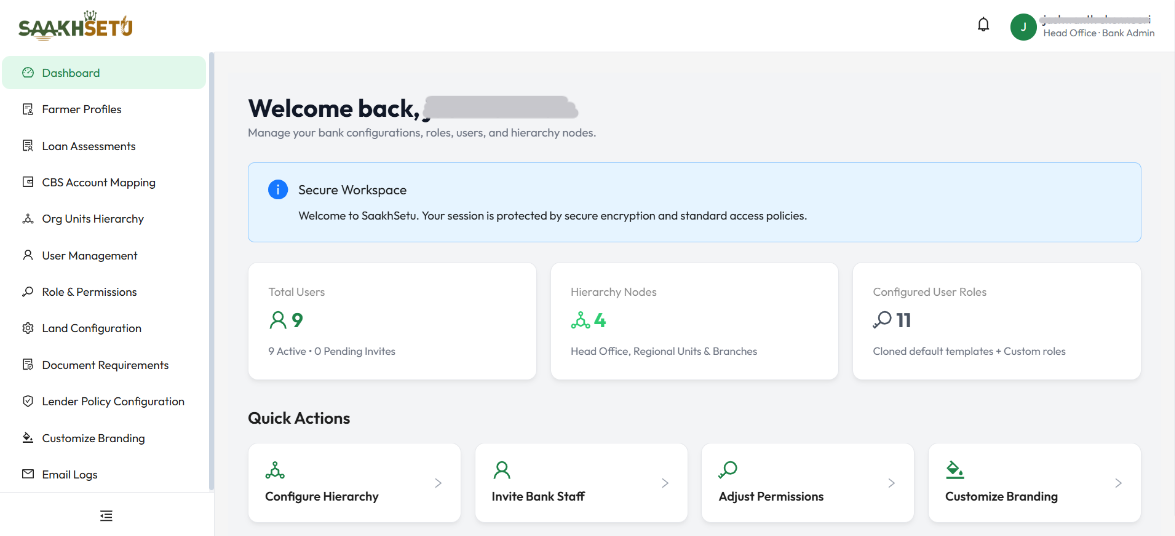
The header
| Element | Position | What it does |
|---|---|---|
| Bank logo | Top left | Your bank's logo, set in Customize Branding. If no logo is set, the SaakhSetu logo appears |
| Notification bell | Top right | Shows recent in-app notifications. A red count shows how many are unread |
| Avatar and name | Top right | Shows your name, plus your branch · role underneath, for example Pune Branch · Credit Assistant. Select it to open the profile menu |
Profile menu
Select your avatar or name to open it.
| Item | What it shows or does |
|---|---|
| Your name and email | The account you are signed in with |
| Sign Out | Ends your session and returns you to Sign-In |
Notifications
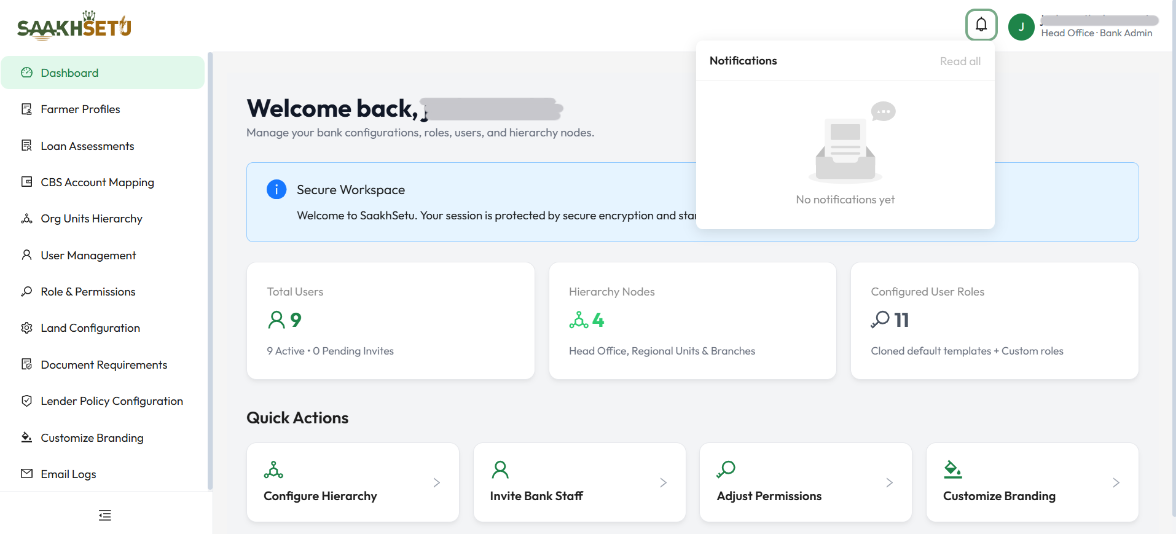
- Select the bell to open your notifications. The list shows your 5 most recent notifications, newest first, with how long ago each one arrived (for example 2 hours ago).
- Unread notifications have a light green background. Select one to mark it as read.
- Select Read all to mark every unread notification as read, including older ones not shown in the list.
- The list refreshes by itself about every 15 seconds and whenever you move to another screen. There is no need to reload the page.
What you are notified about
You are notified when a decision is made on a request you raised. One example is a document waiver request being denied.
The sidebar
The sidebar lists the screens your role can use. The selected item is highlighted.
| Control | What it does |
|---|---|
| Any menu item | Opens that screen |
| Collapse / expand button (bottom of the sidebar) | Shrinks the sidebar to icons only, to give the work area more room. Select it again to expand |
For what each sidebar item does and who sees it, see The sidebar at a glance.
On phones and small tablets
On a screen narrower than a typical tablet, the sidebar is hidden to save space.
- Select the menu icon (three lines) at the top left.
- The sidebar slides in from the left, with your bank logo at the top.
- Select a menu item. The sidebar closes by itself.
Your bank's look
SaakhSetu uses your bank's logo and primary and accent colours throughout: buttons, highlights, the avatar and selected menu items. A Bank Admin sets these in Customize Branding. Changes apply to every user in your bank.
Dashboard
The Dashboard is the first screen you see after signing in. What it shows depends on your role. The workspace screenshot at the top of this page shows a Bank Admin's dashboard.
Every user sees
| Element | Description |
|---|---|
| Welcome back, your first name! | A greeting with a short description of the workspace |
| Secure Workspace notice | A reminder that your session is protected |
Staff without administration rights
Users such as Credit Assistants and Credit Officers see a Your Workspace Profile card that confirms the role they are signed in as. Use the sidebar to reach your daily work, usually Farmer Profiles and Loan Assessments.
Administrators also see
Statistics cards, shown according to your permissions:
| Card | Shows | Shown when you have |
|---|---|---|
| Total Users | The number of staff accounts, with how many are Active and how many are Pending Invites | user.view or user.manage |
| Hierarchy Nodes | The number of org units (Head Office, regional units and branches) | org_unit.manage |
| Configured User Roles | The number of roles: the default templates plus any custom roles | role.manage |
Quick Actions shortcuts:
| Shortcut | Opens | Shown when you have |
|---|---|---|
| Configure Hierarchy | Org Units Hierarchy | org_unit.manage |
| Invite Bank Staff | User Management | user.manage |
| Adjust Permissions | Role & Permissions | role.manage |
| Customize Branding | Customize Branding | tenant.branding.manage |
Pending Invites
If Pending Invites stays above zero, some invited staff have not activated their accounts yet. Open User Management, filter Status to Pending, and use Resend Invite if needed.