2.2 Onboarding a Farmer
WhoCredit Assistant
WhereFarmer Profiles › Onboard Farmer
Permissionfarmer.create to start, farmer.update to continue and finish
Time neededAbout 5–10 minutes with the farmer's documents at hand
Onboarding creates the farmer's core profile: identity, contact details, residential location, family and farming experience. It is a four-step wizard. Land, crops, finances and documents are added afterwards from the farmer's profile.
flowchart LR
    S1[1. Personal] -->|Next: saved as draft| S2[2. Location]
    S2 -->|Next: saved| S3[3. Family & household]
    S3 -->|Next| S4[4. Optional & review]
    S4 -->|Finish| C[Profile complete<br/>farmer code assigned]
Before you start
Have the farmer's Aadhaar card and mobile number ready, and know their residential village. Search the registry first to make sure the farmer is not already registered. See 2.1.
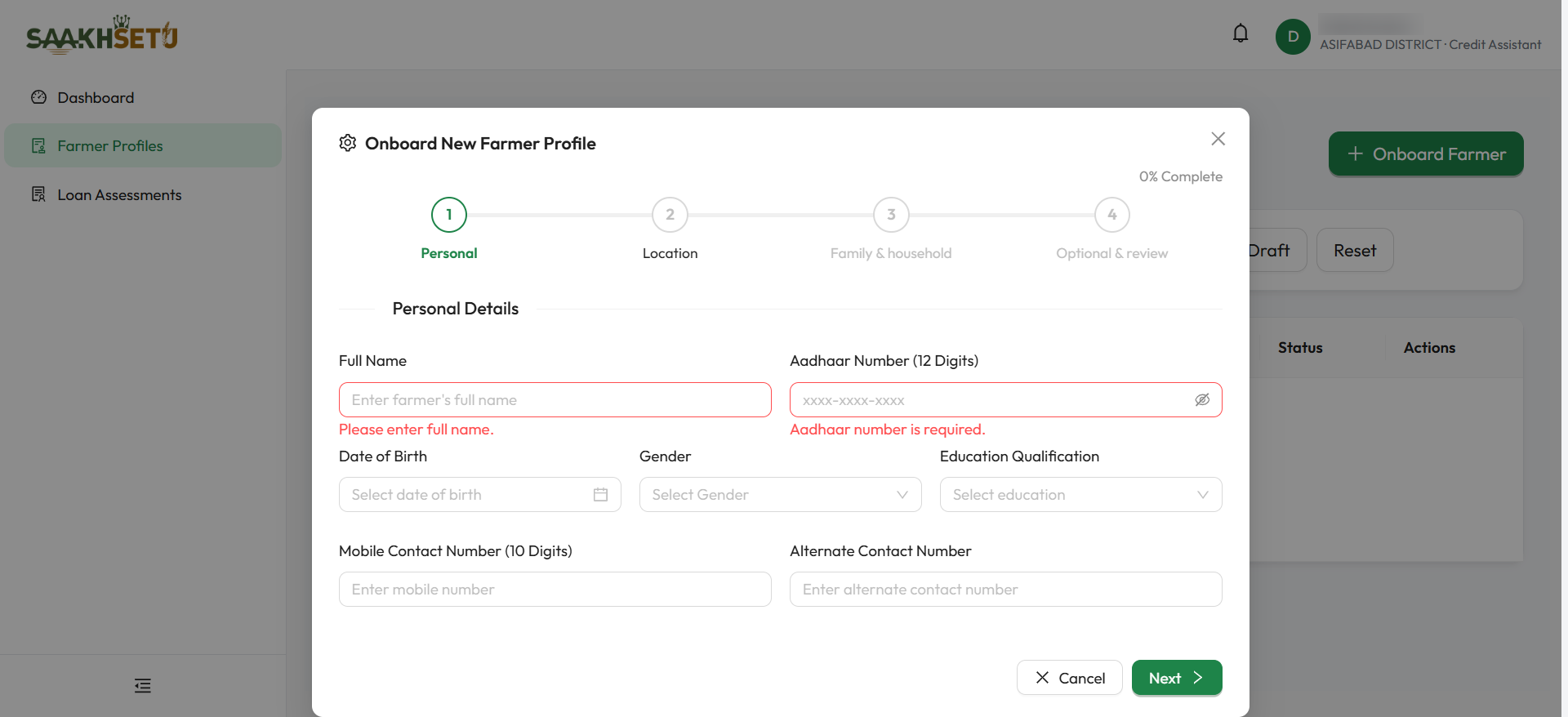
Required fields left empty show a red message, for example Please enter full name. and Aadhaar number is required.
How the wizard works
| Element | Meaning |
|---|---|
| {N}% Complete (top right) | How much of the profile is filled in, across 15 fields. Updates as you type |
| Step circles | Personal, Location, Family & household, Optional & review. A tick marks a finished step. In a new onboarding you move with Next and Back. When editing, you can also click a circle to jump to that step |
| Next > | Checks the current step and saves it (Steps 1 and 2) before moving on |
| < Back | Returns to the previous step without saving |
| Close (X) | Closes the wizard. Anything already saved with Next is kept as a draft |
Your work is saved step by step
The farmer record is created as a draft the moment you select Next on Step 1. If you are interrupted, close the wizard and continue later. See Edit or resume a profile.
Step 1 · Personal
| Field | Required | What to enter | Rules |
|---|---|---|---|
| Full Name | Yes | The name exactly as on the Aadhaar card | Up to 150 characters |
| Aadhaar Number (12 Digits) | Yes | The 12-digit Aadhaar number | Exactly 12 digits; letters and spaces are ignored. Hidden as you type: use the eye icon to show it. Cannot be changed after the first save |
| Date of Birth | Yes | Pick the date from the calendar (DD-MM-YYYY) | Must be in the past. You cannot type the date: use the calendar |
| Gender | Yes | Male, Female or Other | Also decides how household relationships are mirrored (see 2.4) |
| Education Qualification | Yes | Illiterate, Primary, Higher Secondary, Graduate or Agri-BSc/Technical Diploma | |
| Mobile Contact Number (10 Digits) | Yes | The farmer's own mobile number, e.g. 9800000001 | 10 digits starting with 6, 7, 8 or 9. No country code |
| Alternate Contact Number | No | A second number, e.g. a family member's | Same format as the mobile number |
Select Next >. The draft is saved and you move to Step 2.
One profile per Aadhaar number
If another profile in your bank already uses the same Aadhaar number, including drafts and inactive profiles in any branch, SaakhSetu stops with A farmer with this Aadhaar number already exists. Search for the existing profile instead of creating a new one.
How Aadhaar is protected
The full Aadhaar number is never shown again after saving. Everywhere in SaakhSetu you see only the last four digits, like xxxx-xxxx-1234.
Step 2 · Location
Residential address of the farmer. The four lists depend on each other: choose them from top to bottom.
| Field | Required | What to enter | Rules |
|---|---|---|---|
| Residential State | Yes | The farmer's state | Changing it clears District, Taluk and Village |
| District | Yes | The district within that state | Changing it clears Taluk and Village |
| Taluk | Yes | The taluk (block or mandal) within that district | Changing it clears Village |
| Village | Yes | The village within that taluk | Type to search the list |
| Address Line | No | House number, street or landmark | Free text |
Select Next > to save the location.
Step 3 · Family & household
Records the farmer's household. Each entry is saved as soon as you save it in its own pop-up window, so this step has no separate save.
| Card | Use it to | Details |
|---|---|---|
| Family Members | List household members who are not SaakhSetu farmers (spouse, children, parents…) | Select + Add Family Member. See 2.4 |
| Household Linkage | Link this farmer to other farmers already registered in SaakhSetu | Select + Link Farmer. See 2.4 |
Both are optional. Select Next > when you are done.
Step 4 · Optional & review
| Field | Required | What to enter | Rules |
|---|---|---|---|
| Experience (Years) | Yes | Years the farmer has been cultivating | Whole number, 0 or more. If the farmer's farming history says they never cultivated, it is fixed at 0; if they started recently, it cannot exceed the years since they started |
| Livestock Value (Lakhs) | No | Approximate value of the farmer's livestock, in lakh rupees | Whole number, 0 or more |
| Tech Adoption (0-10) | No | Your assessment of how much the farmer uses modern practices and tools, from 0 (none) to 10 (extensive) | Whole number from 0 to 10 |
Experience is required, even on the Optional step
Experience (Years) is mandatory although it sits on the Optional & review step. The profile cannot become complete without it.
Select Finish. You see Farmer profile onboarding completed! and the farmer appears in the registry as Active, with a farmer code.
When is a profile complete?
A profile becomes complete when these 11 fields are filled in:
| Step | Mandatory fields |
|---|---|
| 1 · Personal | Full Name, Aadhaar Number, Date of Birth, Gender, Education Qualification, Mobile Contact Number |
| 2 · Location | State, District, Taluk, Village |
| 4 · Optional & review | Experience (Years) |
At that moment SaakhSetu assigns the farmer code: a 9-digit number unique within your bank, for example 000000042. It never changes afterwards.
Complete is not the same as 100%
The completeness percentage also counts four optional fields: Alternate Contact Number, Address Line, Livestock Value and Tech Adoption. A profile can be complete, with a farmer code, and still show less than 100%.
Edit or resume a profile
- In Farmer Profiles, search for the farmer. To find an unfinished profile, select Draft first.
- Select Edit on the row. The wizard opens as Edit Farmer Profile & Onboarding Wizard with the saved details.
- Click any step circle or use Next to reach the details to change. Each Next saves that step.
- Select Finish on Step 4. You see Farmer profile updated.
| Rule | Why |
|---|---|
| Aadhaar Number cannot be edited | The number is the farmer's identity in SaakhSetu. If it was entered wrongly, deactivate the profile with a reason and onboard the farmer again |
| Inactive profiles cannot be edited | Reactivate the profile first. See 2.1 |
Messages you may see
| Message | Meaning |
|---|---|
| A farmer with this Aadhaar number already exists | The Aadhaar number is already registered in your bank |
| Must be a valid 10-digit Indian mobile format. | The mobile number is not 10 digits starting with 6–9 |
| Date of birth must be a past date. | The date chosen is today or in the future |
| The selected state/district/taluk/village location hierarchy is invalid. | The location choices do not belong together. Choose them again from the top |
| The farmer record could not be found. Please restart onboarding from Step 1. | The draft could not be found. Close the wizard and search for it under Draft |
| Operation not permitted for current role. | Your role lacks the permission for this step. Ask your Bank Admin |