1.1 Signing In & Account Access
WhoEvery bank user
WhereYour bank's SaakhSetu web address, Sign-In page
PermissionNone. Any active user account
This page covers the full account lifecycle: activating a new account from an invitation, signing in, the optional one-time password (OTP) check, resetting a forgotten password, signing out, and what happens when an account is locked.
flowchart LR
    I[Invitation email] --> A[Create Your Password<br/>Activate Account]
    A --> S[Sign-In]
    S -->|OTP enabled for your bank| O[Security Verification<br/>enter 6-digit OTP]
    S -->|OTP not enabled| D[Dashboard]
    O --> D
    S -.->|Forgot Password?| F[Reset Your Password]
    F --> R[Create New Password]
    R --> S
Activate your account (first time only)
You cannot sign in until your account is activated. Your Bank Admin or Organization Admin starts this by inviting you from User Management.
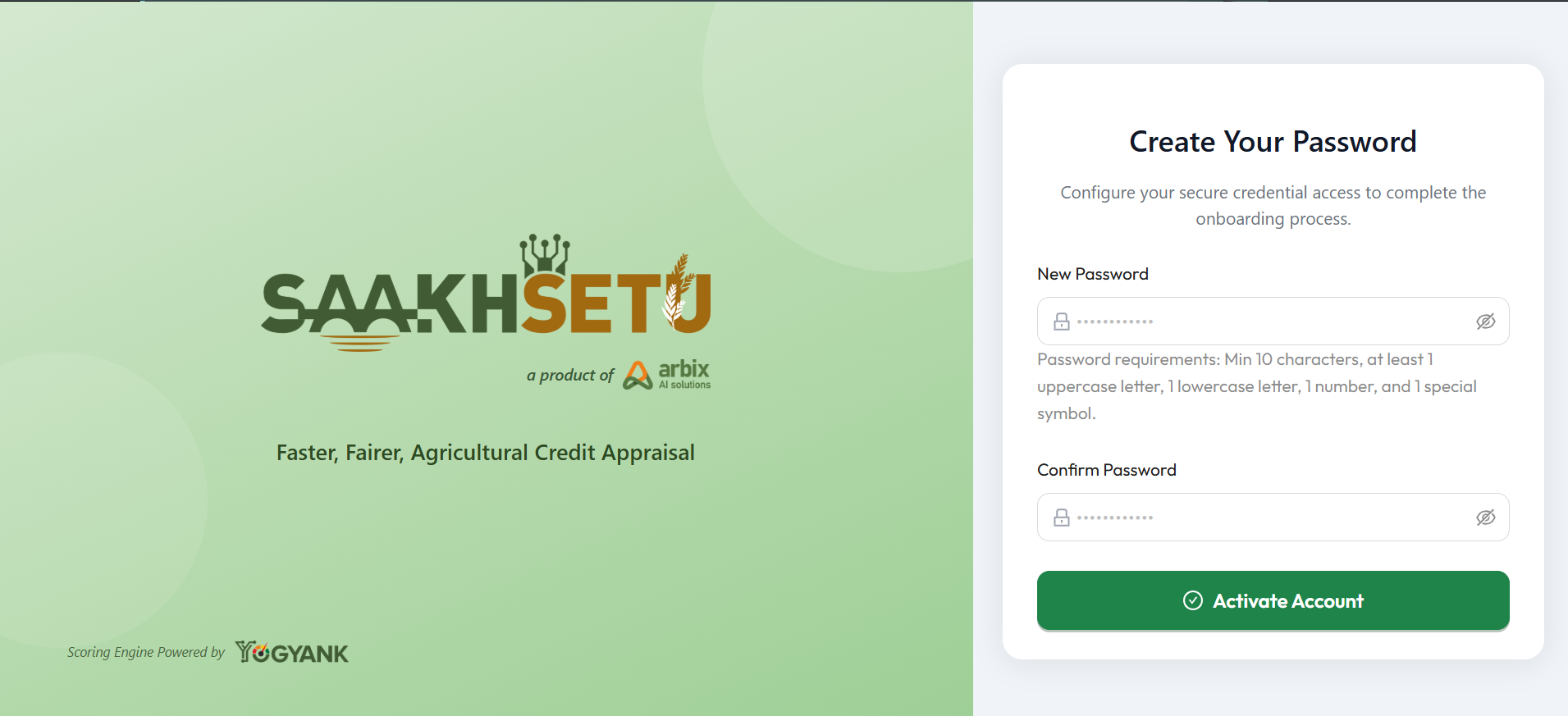
- Open the invitation email from SaakhSetu and select the activation link. It opens the Create Your Password screen.
- Enter a password in New Password that meets the password rules below.
- Enter the same password again in Confirm Password.
- Select Activate Account.
- On Account Activated!, select Go to Sign In and sign in with your email address and new password.
| Field | Required | What to enter | Rules |
|---|---|---|---|
| New Password | Yes | The password you will use to sign in | At least 10 characters, with at least one uppercase letter, one lowercase letter, one number and one special character (@ $ ! % * ? &) |
| Confirm Password | Yes | The same password again | Must match New Password exactly |
Invitation links expire
An invitation link is valid for a limited time, set by your deployment (typically 72 hours). If you see Invalid Link or Activation Failed, ask your admin to use Resend Invite in User Management. Always copy the complete link if you paste it into a browser.
Sign in
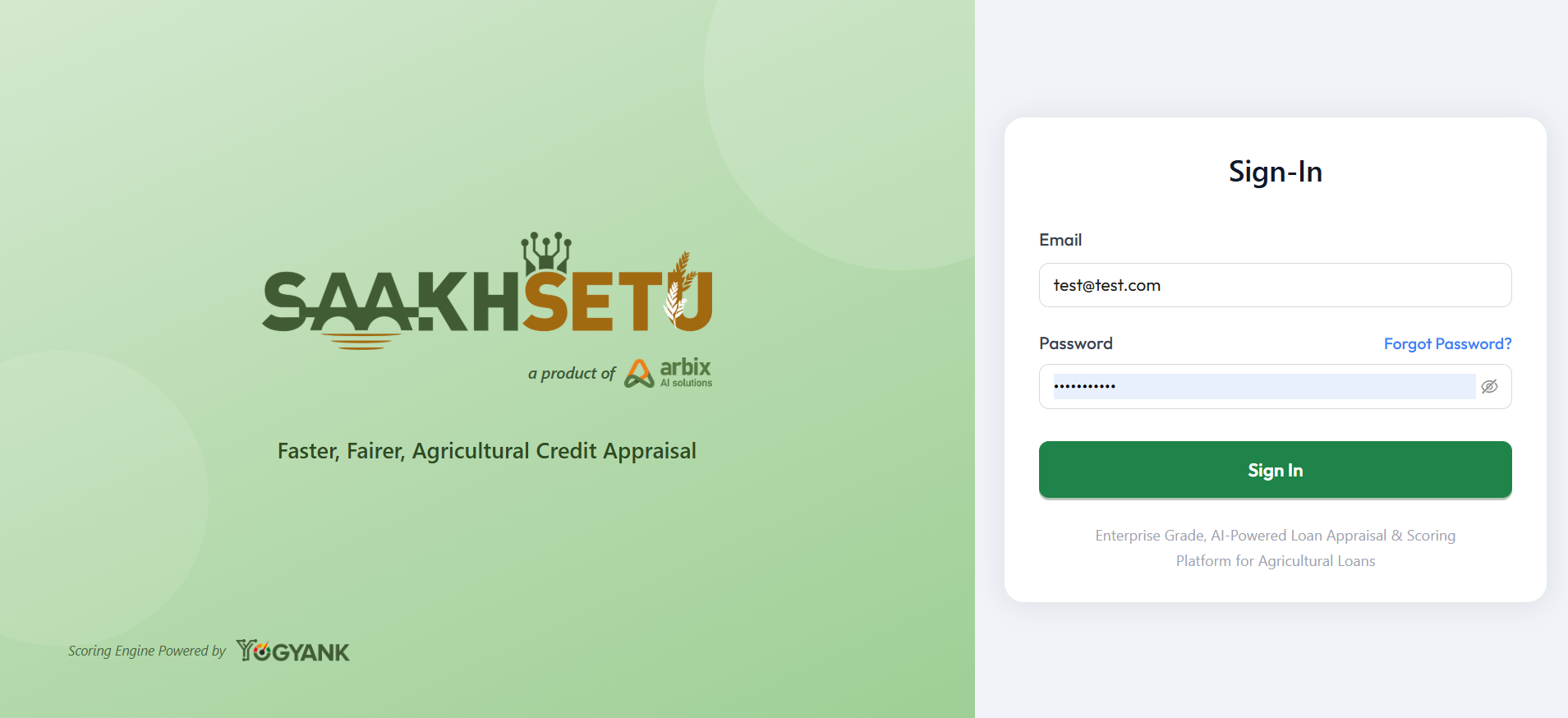
- Go to your bank's SaakhSetu address. The Sign-In screen opens.
- Enter your Email and Password.
- Select Sign In.
- If your bank has login OTP turned on, you are taken to Security Verification (see the next section). Otherwise you go straight to your Dashboard.
| Field | Required | What to enter | Rules |
|---|---|---|---|
| Yes | The email address your admin invited | Must be a valid email address. Not case-sensitive | |
| Password | Yes | Your SaakhSetu password | Case-sensitive |
| Link on the screen | What it does |
|---|---|
| Forgot Password? | Starts a password reset. See Reset a forgotten password. |
One message for every sign-in failure
If either the email or the password is wrong, SaakhSetu shows Authentication Failed: Invalid email or password. It never tells you which one was wrong. This protects your account from people guessing email addresses.
Verify with a one-time password (OTP)
Login OTP is an extra security check. Arbix controls whether it is on for your bank. When it is on, every sign-in needs a 6-digit code sent to your registered email.
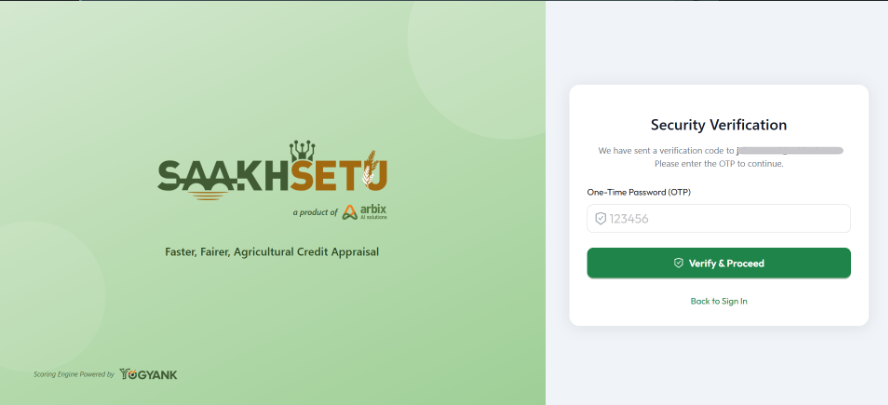
- After Sign In, the Security Verification screen shows the email address the code was sent to.
- Open that email and find the 6-digit code.
- Enter it in One-Time Password (OTP).
- Select Verify & Proceed.
| Field | Required | What to enter | Rules |
|---|---|---|---|
| One-Time Password (OTP) | Yes | The 6-digit code from the email | Exactly 6 characters. Valid for a few minutes only (typically 5) |
- Wrong code: you see Verification Failed. You have a limited number of tries (5) for each code.
- Code expired, or tries used up: select Back to Sign In and sign in again to receive a new code.
- No email received: check spam or junk folders first. Then ask your admin to look for the OTP email in Email Logs.
Reset a forgotten password
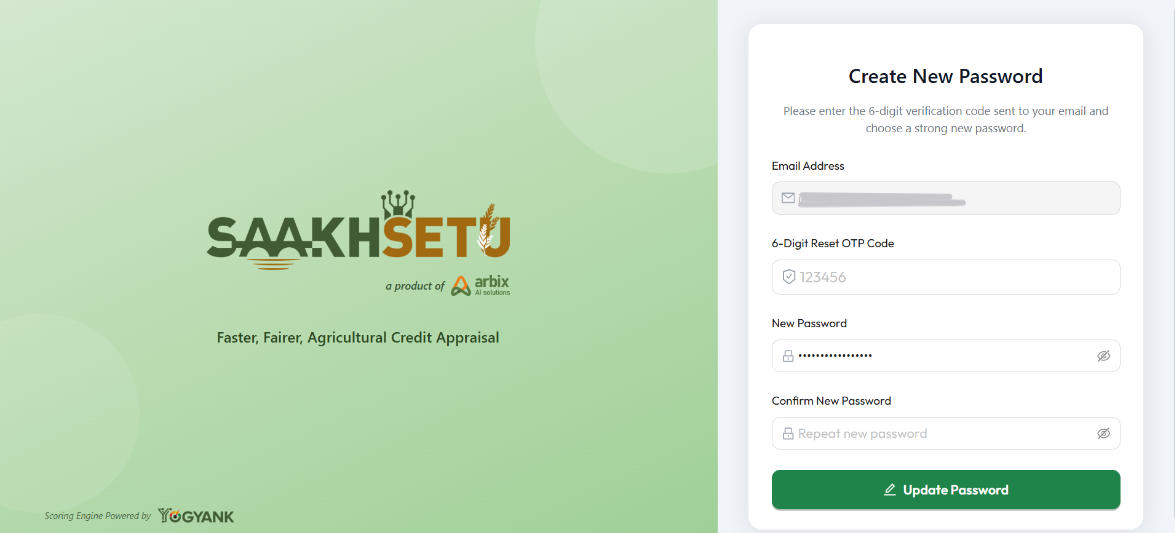
- On Sign-In, select Forgot Password?.
- On Reset Your Password, enter your Registered Email Address and select Send Verification Code.
- You see OTP Code Sent. After about 3 seconds, SaakhSetu opens Create New Password with your email filled in.
- Open the reset email. Enter the 6-digit code from it in 6-Digit Reset OTP Code. If you select the link in the email instead, the code is filled in for you.
- Enter and confirm your new password, then select Update Password.
- You return to Sign-In. Sign in with the new password.
| Field | Required | What to enter | Rules |
|---|---|---|---|
| Registered Email Address | Yes | Your SaakhSetu email | Must be a valid email address |
| Email Address | Yes | Pre-filled from the previous step | Locked when pre-filled |
| 6-Digit Reset OTP Code | Yes | The code from the reset email | Exactly 6 digits. Single use, and expires after a short time |
| New Password | Yes | Your new password | Same rules as activation: 10+ characters, uppercase, lowercase, number and special character |
| Confirm New Password | Yes | The same password again | Must match New Password |
Why you may not receive a reset email
For security, SaakhSetu always shows OTP Code Sent, even when no email is sent. Reset emails go only to active accounts. If your account is pending, suspended or locked, no email arrives. In that case, contact your admin.
Account lockout
Locks after5 failed password attempts in a row
UnlocksAutomatically after 30 minutes, or straight away when an admin selects Unlock
Shown asLocked in User Management
A successful sign-in resets the failed-attempt count to zero. While an account is locked, password reset is not available. Wait for the 30 minutes to pass, or ask your admin to unlock it.
Account status and sign-in
| Status | Can sign in? | What to do |
|---|---|---|
| Pending | No | Activate your account from the invitation email |
| Active | Yes | |
| Locked | No | Wait 30 minutes or ask an admin to Unlock |
| Suspended | No | Only an admin can Reactivate the account |
If your bank's workspace itself is not active, nobody in the bank can sign in. Contact Arbix support.
Staying signed in and signing out
- SaakhSetu renews your session in the background while you work. You are signed out only after your session reaches its maximum length (typically 8 hours), and then you must sign in again.
- To sign out, select your name or avatar at the top right of the screen, then select Sign Out.
Shared or public computers
Always select Sign Out before you leave a shared computer. Closing the browser tab does not end your session.
Platform administrators
Arbix platform administrators use a separate portal. If a platform admin account is used on the bank Sign-In page, SaakhSetu refuses it with Access Denied. Super Admins must sign in via the Super Admin Portal.