1.5 User Management
WhoBank Admin, Organization Admin
WhereSidebar › User Management
Permissionuser.view to see the list. user.manage to invite and change users
Screen titleBank Staff Management
Use this screen to give bank staff access to SaakhSetu, and to control that access over time. Every user has one role, which decides what they can do, and one org unit, which decides where they belong.
The screen
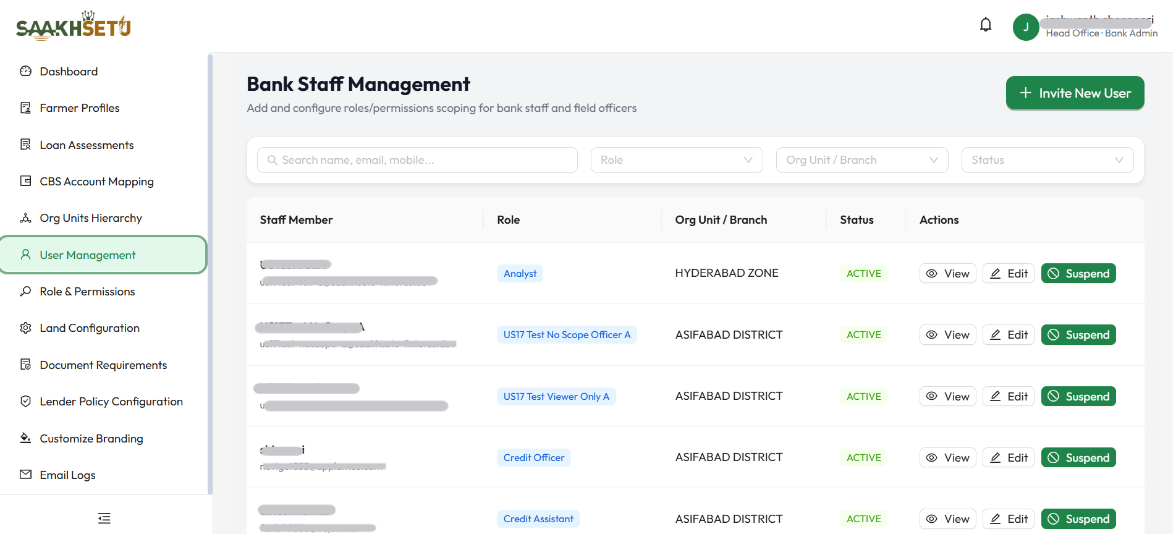
Search and filters
| Control | What it does |
|---|---|
| Search name, email, mobile... | Finds staff whose name, email or mobile number contains what you type |
| Role | Shows only staff with the chosen role. Lists only roles that someone currently holds |
| Org Unit / Branch | Shows only staff in the chosen unit. Lists only units that have staff |
| Status | Shows only Active, Pending, Suspended or Locked staff |
Filters can be combined. Clear a filter with the small × inside it.
Staff table
| Column | Meaning |
|---|---|
| Staff Member | Full name, with the email address underneath |
| Role | The user's role |
| Org Unit / Branch | The unit the user belongs to, or Unassigned |
| Status | The account status (see User statuses) |
| Actions | The buttons available for this user. They change with the status |
The table shows 10 staff per page. On a phone, each user appears as a card with the same information and buttons.
User statuses
| Status | Meaning | Available actions |
|---|---|---|
| Pending | Invited, but the user has not activated the account yet | View, Edit, Resend Invite, Suspend |
| Active | Can sign in and work | View, Edit, Suspend |
| Locked | Blocked after 5 failed sign-in attempts. Unlocks by itself after 30 minutes | View, Edit, Unlock |
| Suspended | Access removed by an admin | View, Edit, Reactivate |
stateDiagram-v2
    [*] --> Pending: Invite New User
    Pending --> Active: User activates from email
    Active --> Locked: 5 failed sign-ins
    Locked --> Active: Unlock, or 30 minutes pass
    Pending --> Suspended: Suspend
    Active --> Suspended: Suspend
    Suspended --> Active: Reactivate
Invite a new user
Before you start
The user's org unit must already exist in Org Units Hierarchy, and their role must exist in Role & Permissions.
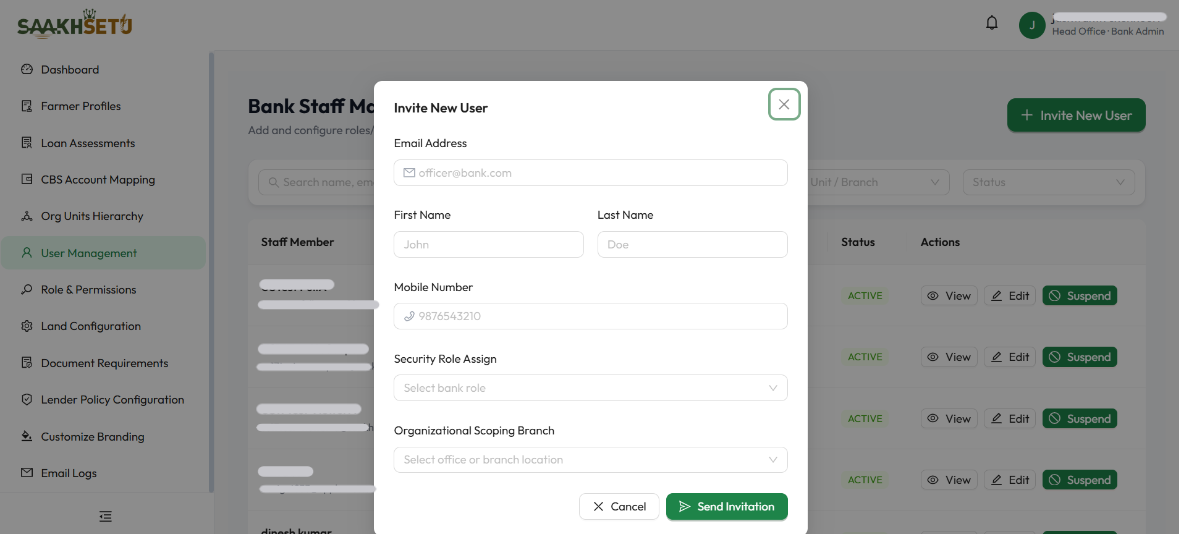
- Select Invite New User (top right).
- Fill in the fields below.
- Select Send Invitation. You see Staff user invitation sent successfully!, and the user appears in the table as Pending.
- The user receives an email and activates the account by setting a password. See Activate your account.
| Field | Required | What to enter | Rules |
|---|---|---|---|
| Email Address | Yes | The user's work email, e.g. officer@examplebank.test | Valid email address. Must not already belong to another user. Cannot be changed later |
| First Name | Yes | The user's first name | 2–50 characters. Must start with a letter. May contain letters, spaces, apostrophes ('), periods (.) and hyphens (-). No leading or trailing spaces |
| Last Name | Yes | The user's last name | Same rules as First Name |
| Mobile Number | No | 10-digit Indian mobile number, e.g. 9800000001 | Exactly 10 digits, starting with 6, 7, 8 or 9. No country code |
| Security Role Assign | Yes | The role that decides what the user can do | Choose from your bank's roles |
| Organizational Scoping Branch | Yes | The org unit the user works in | Choose from your bank's org units. Each is shown with its level, e.g. Pune East (branch) |
Choosing the org unit
Assign branch staff (Credit Assistants and Credit Officers) to their branch. Assign staff who work across branches, such as a central Sanctioning Authority or Credit Operations team, to the office they actually work from, for example the Head Office.
View a user's details
Select View to open Staff Member Profile Details:
| Detail | Meaning |
|---|---|
| Full Name, Email | The user's identity |
| Assigned Role | Their current role |
| Branch/Org Unit | Their unit, with its level |
| Status | Their current account status |
| Joined Date | When the user was invited |
| Failed Logins | Failed sign-in attempts since their last successful sign-in |
Edit a user
Use Edit when someone changes their name, moves branch or changes role.
- Select Edit on the user's row.
- In Edit Staff Member, change First Name, Last Name, Security Role Assign or Organizational Scoping Branch. The email address is shown but cannot be changed.
- Select Save Changes.
Role changes take effect on the next sign-in
A user's menus and permissions come from their role at the moment they sign in. After you change someone's role, ask them to sign out and sign in again.
Email address is permanent
The email address is the user's identity in SaakhSetu and in the audit trail, so it cannot be edited. If an address is wrong, suspend that account and invite the person again with the correct address.
Resend an invitation
For a Pending user who has lost the email, or whose link has expired, select Resend Invite. A fresh invitation email is sent. You can check delivery in Email Logs.
Unlock an account
For a Locked user, select Unlock. The account becomes active immediately and the failed-attempt count is reset. You see User account unlocked successfully. Failed login attempts reset.
Suspend and reactivate
| Action | Steps | Result |
|---|---|---|
| Suspend | Select Suspend, then confirm with Yes, Suspend | The user can no longer sign in to your bank's workspace. Their records and history are kept |
| Reactivate | Select Reactivate on a suspended user, then confirm with Yes, Reactivate | The user can sign in again with their existing password |
You cannot suspend yourself
A Bank Admin's own Suspend button is disabled, so the bank can never be left with no one able to manage users. Another admin must do it.
When staff leave
Suspend leavers on their last working day instead of reassigning their accounts. SaakhSetu keeps every action tied to the person who took it, and that audit trail must stay accurate.
Messages you may see
| Message | Meaning |
|---|---|
| Staff user invitation sent successfully! | The invitation was created and the email was queued |
| Invitation link resent successfully. | A new invitation email was sent |
| Staff member updated successfully. | Your edits were saved |
| User access suspended. / User access reactivated. | The status change was applied |
| Action Failed banner | The change was rejected. The banner explains why, for example a duplicate email address. Close it with the × |