1.8 Document Requirements
WhoBank Admin
WhereSidebar › Document Requirements
Permissiontenant_config.manage
Applies toNew loan assessments, per loan product and application type
This screen decides which documents a Credit Assistant must collect for each kind of loan. It works in two layers:
- Platform template (set by Arbix). The baseline for each loan product and application type. Some documents in it are platform mandatory: they are required for every bank and you cannot change them.
- Your bank's overlay (set here). Your bank's own choices for every document the platform has left open: required, conditionally required, optional or not required.
The combination becomes the document checklist on the Documents step of each new loan assessment.
flowchart LR
    P[Platform template<br/>set by Arbix] --> M[Combined checklist]
    O[Your bank's overlay<br/>set on this screen] --> M
    M --> A[Documents step of<br/>each new assessment]
Choose what to configure
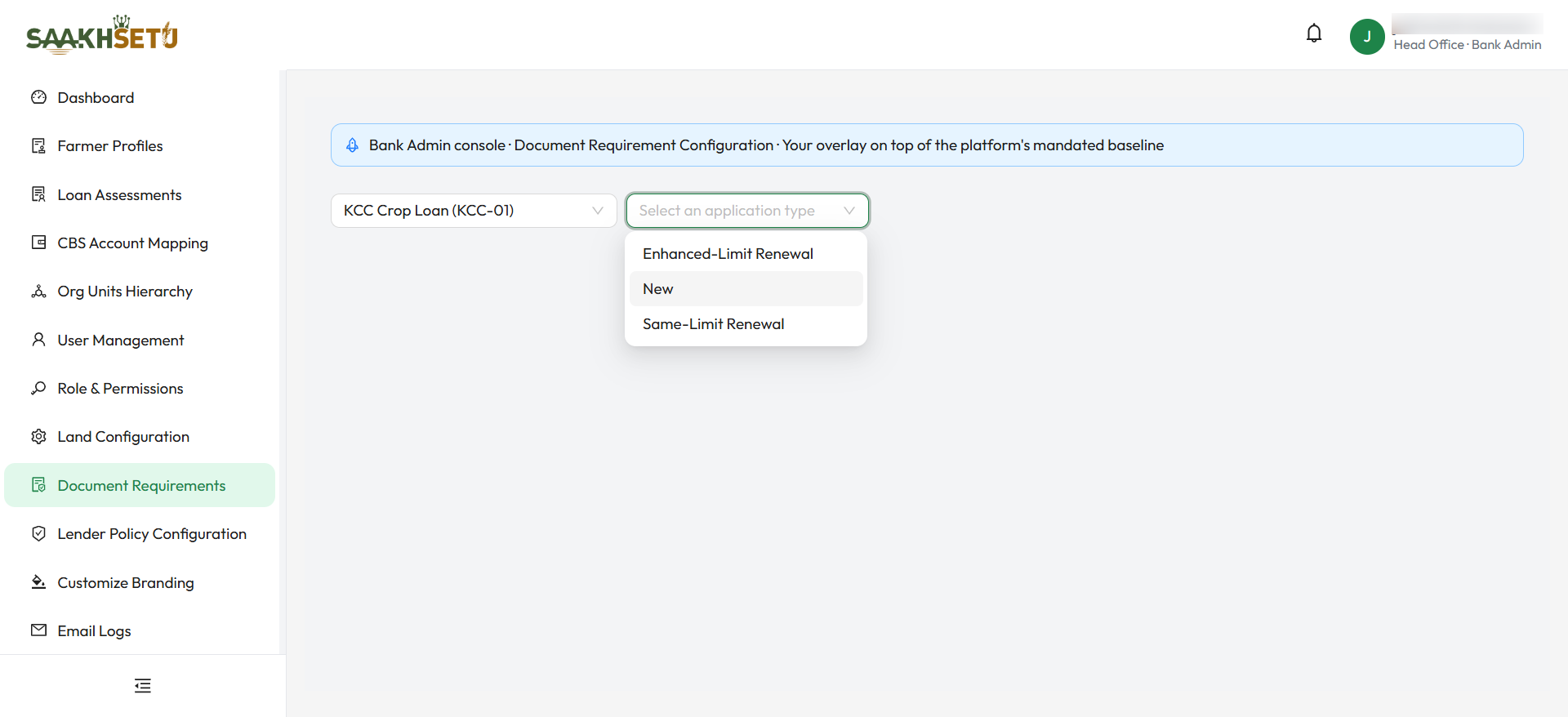
- In Select a loan product, choose the product, for example a crop-loan product. Products are listed as Name (code).
- In Select an application type, choose the application type, for example a fresh application or a renewal. This list is available only after you pick a product.
- Two tabs appear: Draft editor and Version history.
Each product and application type pair has its own overlay and its own version history.
Start a draft
If there is no draft for the pair, Draft editor shows No draft in progress for this product/application type.
- Select Start new draft. SaakhSetu creates a draft based on the current published platform template.
- If you see Failed to start a draft…, Arbix has not yet published a platform template for that product and application type. Contact Arbix.
Edit the draft
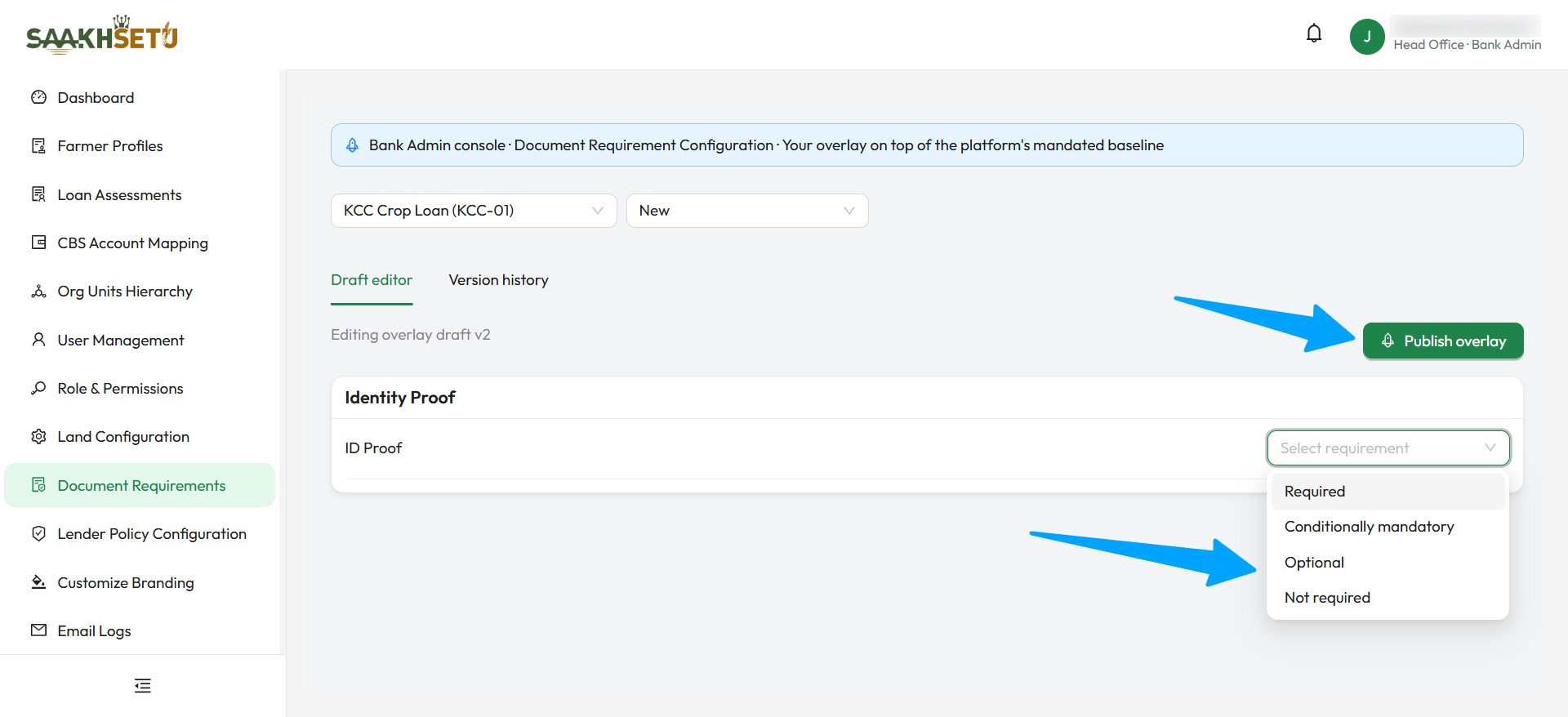
Documents are grouped into categories: Identity Proof, Land and Ownership, Financial, Insurance and Other. Each row shows the document name and, on the right, its setting.
Rows the platform has fixed
A row tagged Locked by platform template cannot be changed by your bank. Select the tag to see why. The explanation also says whether the document is waivable:
- Waivable: a Credit Assistant or Credit Officer can still request a per-application waiver from the Documents step when a farmer genuinely cannot produce the document. A Credit Officer decides the request.
- Not waivable: it cannot be waived for any application. If your bank cannot obtain it in some cases, contact Arbix.
Rows your bank sets
For every other row, choose a setting from the Select requirement list:
| Setting | Meaning on an assessment |
|---|---|
| Required | Must be uploaded for every application of this product and type |
| Conditionally mandatory | Required only when a condition you define is true (see below) |
| Optional | Shown on the checklist, but the assessment can go ahead without it |
| Not required | Not on your bank's checklist |
| (cleared) | Clearing the setting with × removes your bank's entry. The row then reads Not required by your bank |
Waivable switch
For rows set to Required or Conditionally mandatory, a Waivable switch appears:
| Switch | Meaning |
|---|---|
| On | Staff may request a waiver for an individual application, subject to a Credit Officer's decision |
| Off | The document must always be provided. No waiver can be requested |
When your choice differs from the platform template's default, an orange tag shows the platform's setting, for example Platform: waivable. Your bank's setting is the one that applies.
Condition rule (conditionally mandatory documents)
For a row set to Conditionally mandatory, select Edit rule to say when the document is required.
| Field | Required | What to enter | Rules |
|---|---|---|---|
| Field | Yes | What the condition checks: application_type_code or requested_amount_band |
Only these two fields are allowed |
| Condition: equal to | Yes | The value that triggers the requirement, e.g. ENHANCED_LIMIT_RENEWAL |
Must match the system value exactly |
Select Save rule. The condition is checked once, when an assessment is created, and every time it matches, the match is logged for audit.
Publish the overlay
A draft has no effect until you publish it.
- In Draft editor, select Publish overlay.
- Enter Effective from and Change reason.
- Select Confirm publish. You see Overlay published as vN.
| Field | Required | What to enter | Rules |
|---|---|---|---|
| Effective from | Yes | The date from which new assessments use this version | Must not overlap the currently published version. An overlap is rejected with This overlaps the currently published version. |
| Change reason | Yes | Why the requirements changed, e.g. Added insurance proof per credit policy circular | Free text. Kept permanently in the version history |
If publishing fails validation, the message lists what needs fixing. Correct the draft and publish again.
Version history
The Version history tab lists every version for the selected pair:
| Column | Meaning |
|---|---|
| Version | v1, v2, … |
| Status | Draft being edited, Published in force, or an earlier version that has been replaced |
| Effective from | When the version took effect |
| Reason | The change reason entered at publishing |
| Actions | View details opens a read-only copy of that version's complete requirement list |
Existing assessments are not affected
Publishing a new version changes the checklist for assessments created after it takes effect. Assessments already in progress keep the requirements they started with.