2.10 Documents
WhoCredit Assistant (upload), Credit Officer (verify or reject)
WhereFarmer profile › Documents tab
Permissionfarmer.update to upload and delete. document.verify to verify or reject
FilesPDF, JPG or PNG, up to 20 MB
The Documents tab holds the farmer's supporting papers: identity proof, land records, statements, insurance policies, sale receipts and more. Each document is reviewed once by an officer, who either verifies or rejects it. Verified documents are what other parts of SaakhSetu rely on as evidence, such as income verification and loan classification.
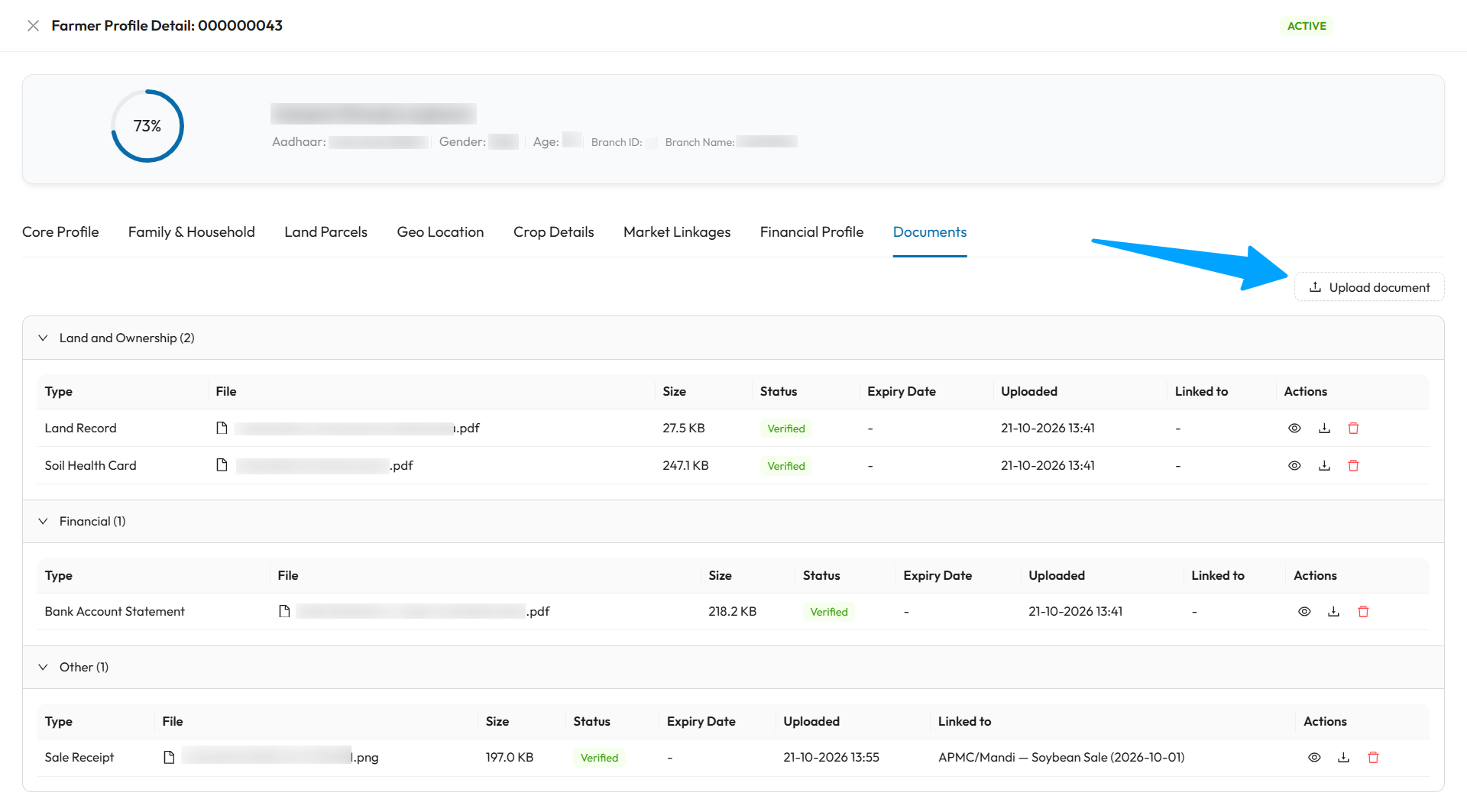
The arrow points to Upload document. Documents are grouped by category, and each row shows its status and the View, Download and Delete icons. The Sale Receipt in this example is linked to a sale.
Document lifecycle
flowchart LR
    U[Uploaded] --> P[Pending verification]
    P -->|Officer accepts| V[Verified]
    P -->|Officer rejects<br/>with a reason| R[Rejected]
    V -.->|Expiry date passes| E[Expired]
P -.->|Expiry date passes| E| Status | Meaning |
|---|---|
| Pending verification | Uploaded, waiting for an officer to review it |
| Verified | An officer confirmed the document |
| Rejected | An officer rejected it. Hover over the tag to see the reason |
| Expired | The document's expiry date has passed. Applies whatever its review status was |
Upload a document
- On the Documents tab, select Upload document.
- Choose the Document type.
- Select Choose PDF / JPG / PNG (max 20MB) and pick the file.
- Optionally, link it to a loan, insurance policy or sale in Link to.
- If asked, enter the Expiry Date.
- Select Upload. You see Document uploaded. It appears as Pending verification.
| Field | Required | What to enter | Rules |
|---|---|---|---|
| Document Type | Yes | What the document is | See the list below |
| File | Yes | The scanned or photographed document | PDF, JPG or PNG only, up to 20 MB. SaakhSetu checks the file's real content, so renaming another file type does not work |
| Link to | No | The loan, insurance policy or sale this document supports | Default is No link (farmer-level document). A document can be linked to only one record |
| Expiry Date | Yes, only for document types that expire | When the document stops being valid | Today or later. Shown only for types with an expiry |
Document types
| Category | Document types |
|---|---|
| Identity Proof | ID Proof |
| Land and Ownership | Land Record, Yield Certificate, Soil Health Card, NABL Lab Report |
| Financial | Bank Account Statement, Loan Account Statement, Previous Loan Document |
| Insurance | Insurance Policy Document (requires an expiry date) |
| Other | Sale Receipt, Purchase Invoice, Contract Farming Agreement, J-Form/Sale Slip, FPO Certificate |
Use each sale's own receipt
If you upload a file that is already attached as the receipt for another sale, SaakhSetu warns you that it will not count as verification evidence for this sale. Attach the receipt that belongs to this sale.
The document list
Documents are grouped by category in collapsible panels, for example Financial (3). Within a category, uploads of the same type are grouped with the newest first. Older uploads and expired documents are shown faded.
| Column | Meaning |
|---|---|
| Type | Document type |
| File | The original file name |
| Size | File size in KB |
| Status | See Document lifecycle |
| Expiry Date | Expiry date, or - |
| Uploaded | When it was uploaded |
| Linked to | The loan, policy or sale it supports, or - |
| Actions | The icons below |
| Action | What it does | Available to |
|---|---|---|
| View (eye icon) | Opens the document in a new browser tab. The link works for 10 minutes | Everyone who can see the profile |
| Download | Downloads the file | Everyone who can see the profile |
| Verify or reject (shield icon) | Opens Review Document | document.verify, only while Pending verification and not expired |
| Delete (bin icon) | Removes the document from the list | farmer.update |
Verify or reject a document (Credit Officer)
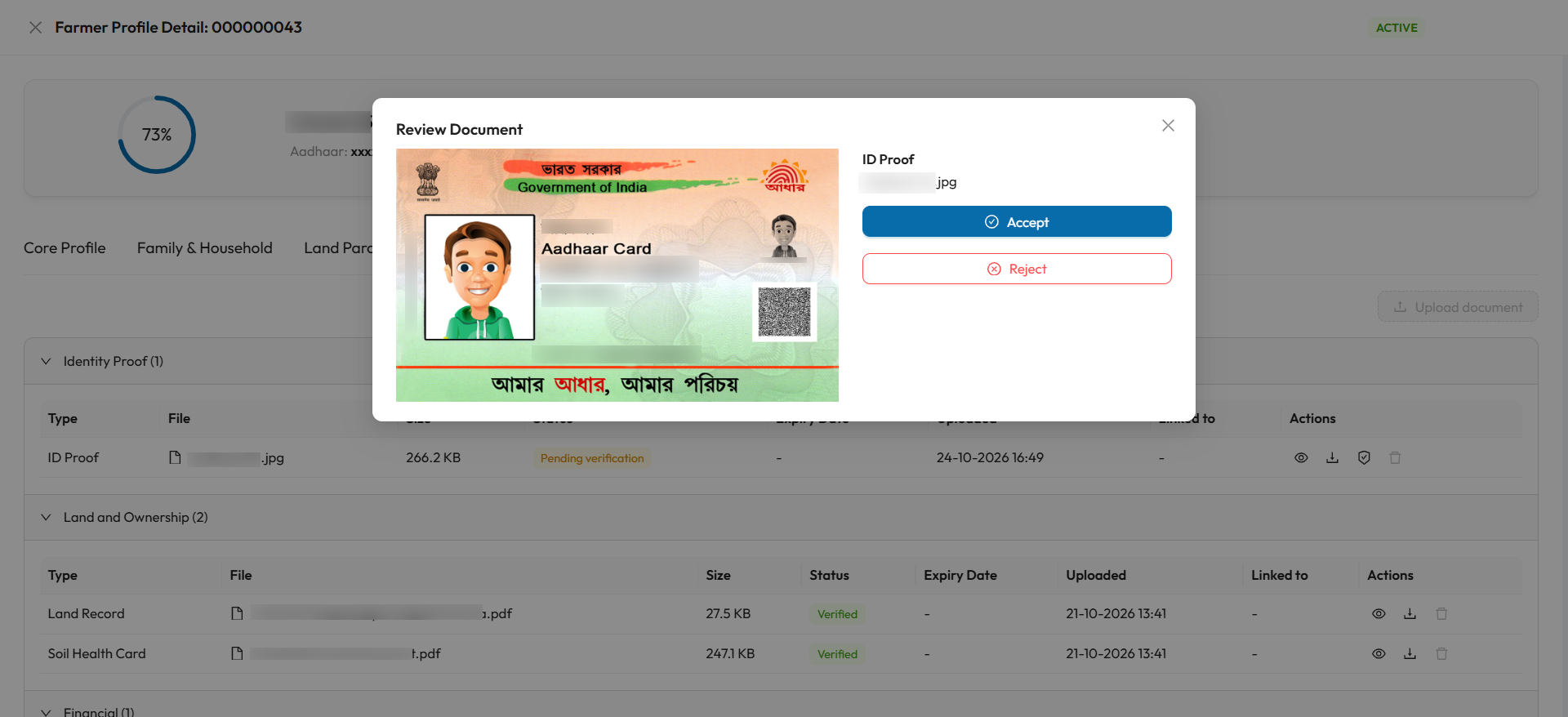
The window opens from the Verify or reject (shield) icon on a document that is Pending verification, as with the ID Proof in the list behind it. Compare the preview with the farmer's details, then choose Accept or Reject.
- Select the Verify or reject (shield) icon on a pending document. Review Document opens with a preview of the file.
- Compare the document with the farmer's details.
- To verify: select Accept, then Confirm Verification. You see Document verified.
- To reject: select Reject, explain why, then select Confirm Rejection. You see Document rejected.
| Field | Required | Rules |
|---|---|---|
| Rejection reason | Yes, when rejecting | Up to 250 words. A word counter is shown |
A review is final
Each document is reviewed once. A verified or rejected document cannot be changed back. If a document was rejected, or a better copy is needed, upload a new file: it becomes a new pending document, and the older one stays in the list, faded.
Expired documents
An expired document can no longer be verified or rejected. Upload a current copy.
Delete a document
Select the bin icon and confirm Delete. The document disappears from the list. Deletion is recorded, and support can restore the document if needed.
Replace instead of delete
To correct a document, upload the new version rather than deleting the old one first. The history of what was submitted and reviewed stays visible.