2.6 Geo Location
WhoCredit Assistant (field staff)
WhereFarmer profile › Geo Location tab
Permissionfarmer.geolocate, which is separate from farmer.update
NeedsAn open loan application for the farmer with consent granted
Geo Location records where each parcel is: a pin point inside the parcel, a boundary drawn around it, or both. SaakhSetu uses it to work out the distance to market, to support continuity evidence, and to check the declared area.
Precise location is protected
Exact coordinates are visible only to users with farmer.geolocate. Other users see only whether a location was captured and its accuracy.
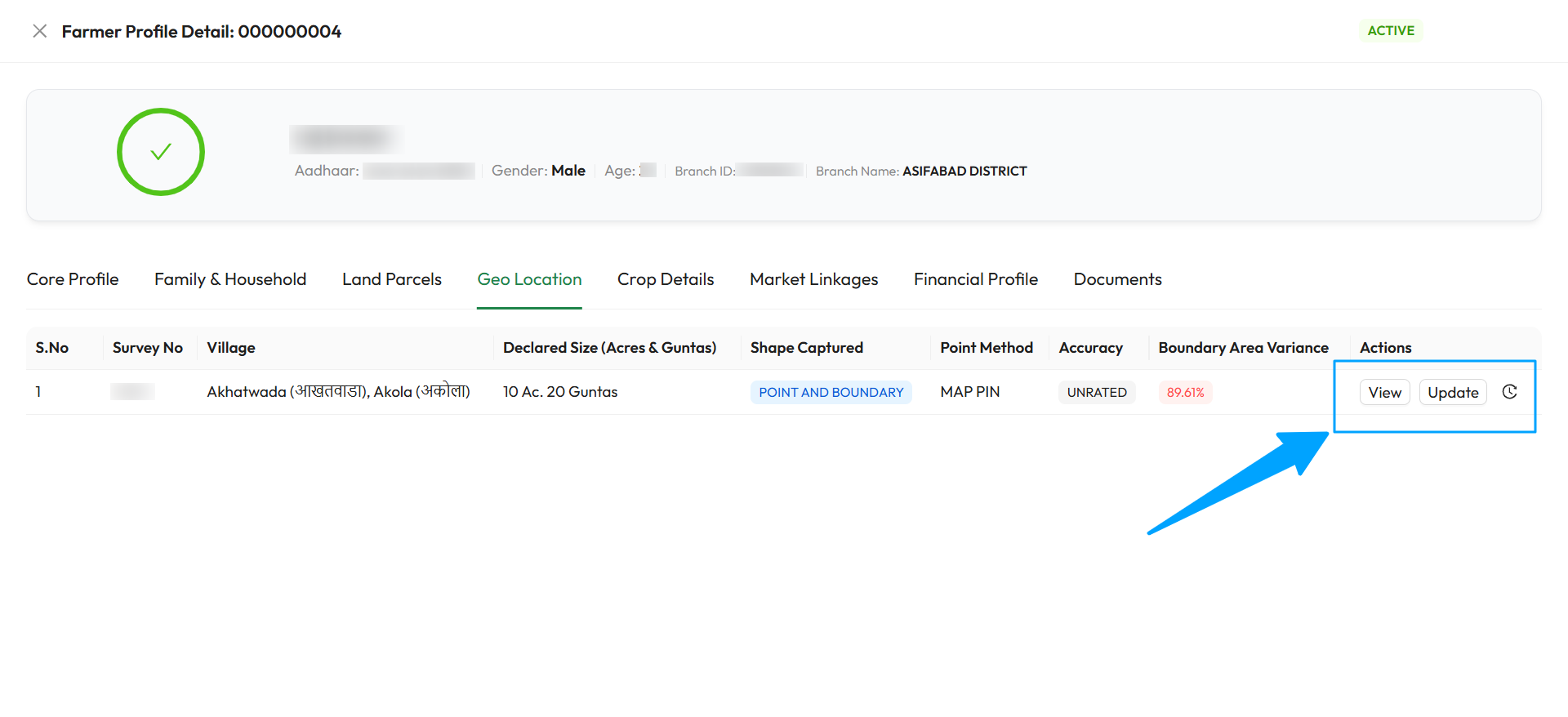
The red 89.61% means the drawn boundary's area differs from the declared area by more than 20%, so it is flagged. The location is still saved. The highlighted actions are View, Update and the history icon.
The parcel table
| Column | Meaning |
|---|---|
| Shape Captured | Point only, Boundary only, Point and boundary, or Not captured |
| Point Method | Device GPS or Map pin |
| Accuracy | High (10 m or better), Medium (up to 50 m), Low (worse than 50 m), or Unrated for a map pin |
| Boundary Area Variance | How far the drawn boundary's area is from the declared area. Shown in red when the difference is more than 20% |
| Actions | Capture for a parcel without a location. Otherwise View, Update and the history icon |
Before you capture: consent
A location can be captured only on the authority of a farmer's granted consent on an open loan application. The window's first card, Assessment & consent context, asks you to:
- Choose the assessment whose consent authorises the capture. Only this farmer's open applications are listed.
- Check the consent tag: Granted means you can proceed.
If there is No open application found for this farmer, start one in Loan Assessments and capture consent first. If the application has already ended, start a new one with fresh consent.
The location belongs to the parcel
The saved location is a property of the parcel, not of the assessment you picked. Every later assessment for this farmer uses it too.
Capture a location
Select Capture. The window has two ways to capture.
Use this when you are standing on the parcel with a phone or tablet.
- Stand inside the parcel, away from its edges. The reading should be a representative interior point, not a boundary marker.
- Select the Device GPS tab, then Get current location. Allow location access if your browser asks.
- Check the Latitude, Longitude and Accuracy. Try again for a better reading if accuracy is poor.
- Select Save location.
A reading worse than 50 m is saved, but rated Low with a warning.
Use this from the office, on the map.
- Select the Map (pin / boundary) tab.
- To place a pin, choose Place pin and click inside the parcel on the map.
- To draw a boundary, choose Draw boundary and click each corner of the parcel in turn. Drag a corner to adjust it, or use Undo last point.
- Select Save location. You can save a pin, a boundary, or both together.
| Boundary rule | Detail |
|---|---|
| Corners | At least 3, at most 20 on screen |
| Shape | The boundary must not cross itself. A self-crossing shape is rejected |
| Location | All points must fall within India |
| Area check | If the boundary's area differs from the declared area by more than 20%, you get a warning. The location is still saved |
If the map is not available in your deployment, you see Map capture is unavailable. Use Device GPS instead.
You see Location saved., followed by any warnings, such as low accuracy or area variance.
View, update and history
| Action | What it does |
|---|---|
| View | A read-only map with the pin, the boundary and the details. For a boundary without a pin, an orange dot shows a point SaakhSetu worked out inside the boundary. It is not a captured location |
| Update | Opens the capture window to correct the location. Saving replaces the current location, and the earlier one is kept in history. Parts you do not re-capture are carried forward unchanged |
| History icon | Every capture, oldest first: who captured what and when, with Active or Superseded, and First capture or Correction |
Retired parcels
The location of a retired parcel cannot be captured or changed.