3.2 Starting an Assessment
WhoCredit Assistant
WhereLoan Assessments › Start new assessment
Permissionassessment.create. assessment.override_journey to override the journey
Before you startThe farmer's profile is complete. See the Profile Readiness Checklist
Starting an assessment records what the farmer is applying for, and SaakhSetu picks the journey: the set of steps you will complete for this product and application type.
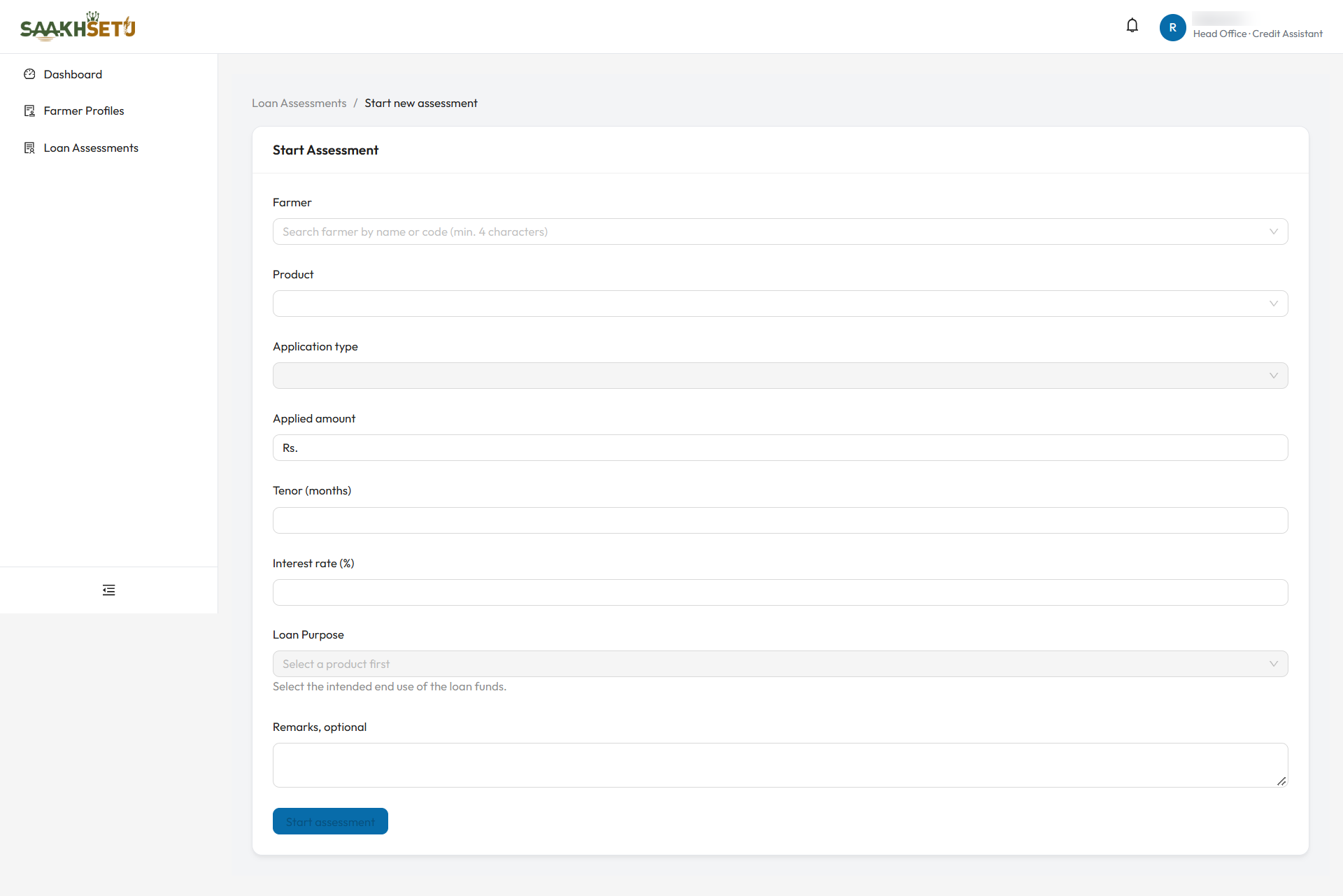
Application type and Loan Purpose stay greyed out until you choose a Product. Start assessment becomes available once the journey has resolved.
Fill in the application
- In Loan Assessments, select Start new assessment.
- Search for the Farmer (at least 4 characters of the name or farmer code). Only completed profiles are listed.
- Choose the Product, then the Application type. The product's default type is selected for you.
- Wait for the journey to resolve. Resolving journey... is shown briefly.
- Fill in the loan details below.
- Select Start assessment. The wizard opens at the first step.
| Field | Required | What to enter | Rules |
|---|---|---|---|
| Farmer | Yes | The applicant | Completed profiles only |
| Product | Yes | The loan product, e.g. a crop loan | Products your bank has activated. Changing it clears Application type and Loan Purpose |
| Application type | Yes | New, Same-Limit Renewal or Enhanced-Limit Renewal, where the product offers them | Available once a product is chosen |
| Applied amount | Yes | The amount the farmer is asking for, in rupees | More than 0. The amount is also shown in words |
| Tenor (months) | Yes | Loan period | 1 to 600 months |
| Interest rate (%) | Yes | Applicable interest rate | 0 to 100 |
| Loan Purpose | Yes | The intended end use of the funds, e.g. Crop Production Inputs | Only purposes mapped to the product |
| Remarks, optional | No | Any context for the application |
How the journey is chosen
Arbix configures which journey applies to each product and application type. A journey is an ordered set of steps, such as Personal / KYC details, Land holding, Crop / cultivation details, Financial profile, Credit history, Documents, External data, and Review and submit. Every journey ends with External data followed by Review and submit.
If the combination cannot be used yet, the form shows why:
| Message | What to do |
|---|---|
| … is not enabled for this tenant. Contact your Bank Admin to request activation. | Ask your Bank Admin to activate the product |
| No active journey is mapped for … This combination cannot be used yet. | Contact Arbix |
| … has no published configuration version yet. Contact your Platform Admin. | Contact Arbix |
| This product has no configured loan purposes yet. | Contact Arbix |
Override the recommended journey
For some crop working-capital and agri gold loan products, you can choose a different journey version when the recommended one does not fit the farmer's situation:
- Tick Override recommended journey.
- Choose the journey in Select a different journey version.
- Enter a Reason, which is required.
The override needs assessment.override_journey and is recorded in the audit trail. It can only be done while the assessment is a draft.
Rules
| Rule | Message |
|---|---|
| One active application per farmer, product and application type | An active assessment already exists. Select Resume that assessment to open it |
| Purpose must belong to the product | … is not a valid purpose for … |
What happens when you start
- The assessment is created as DRAFT, with you as its Credit Assistant and owner, serviced by your branch.
- Revision 1 is opened for editing.
- Your bank's document requirements for this product are fixed for this application.
- For a renewal, the farmer's previous sanctioned application for the same product is linked automatically.
- There is no Application ID yet. It is given at first submission.