2.7 Crop Details
WhoCredit Assistant (capture), Credit Officer (sale-status verification)
WhereFarmer profile › Crop Details tab
Permissionfarmer.update. farmer.field_visit_capture for field visits. document.verify to verify "not yet sold"
Crop Details records what the farmer grows on each parcel, season by season: crops already sown or harvested, crops planned for this year, yields, insurance, irrigation and sale status. Crop history is one of the strongest inputs to the Yogyank score, so record it carefully and completely.
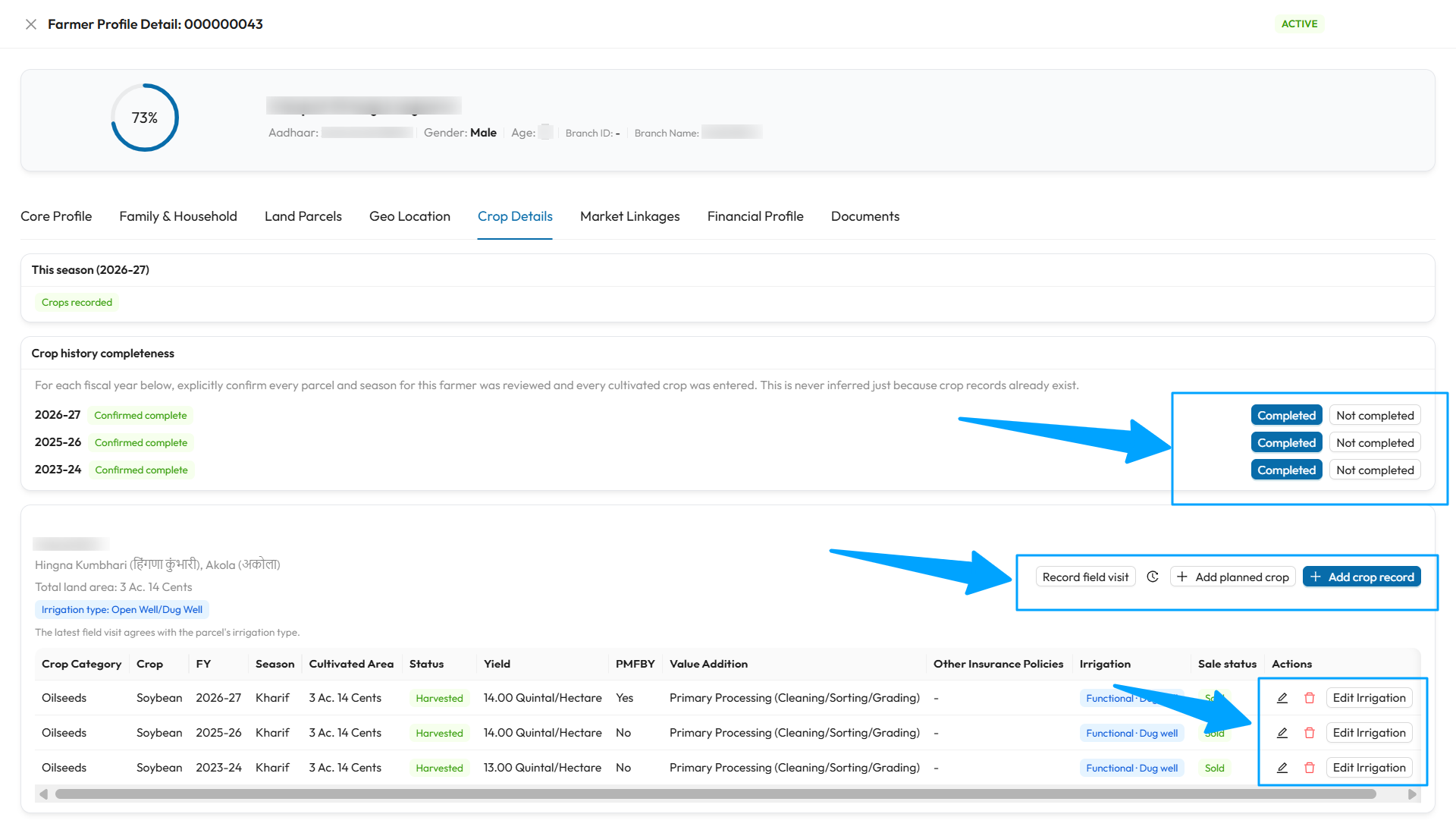
The arrows point to the Completed and Not completed buttons for each fiscal year, the parcel's Record field visit, Add planned crop and Add crop record buttons, and the row actions: edit, delete and Edit Irrigation. In this example, three years are confirmed complete, and each harvested crop shows its yield, irrigation and Sold status.
Fiscal years
Crop years follow the Indian fiscal year, 1 April to 31 March, written as YYYY-YY. Crop records can be added for the current fiscal year and the three before it.
How the tab is laid out
| Card | Purpose |
|---|---|
| This season (FY) | The current year's status: crops recorded, planned only, fallow, or nothing yet. Also records crop insurance access |
| Crop history completeness | Lets you confirm, year by year, that every crop was entered |
| Parcel cards | One card per parcel, listing that parcel's crops, with buttons to add crops and record field visits |
This season
| Status | Meaning |
|---|---|
| Crops recorded | At least one crop is sown or harvested this year |
| Planned crops only | Only planned crops so far |
| Fallow this year | The farmer is not cultivating this year |
| Nothing recorded yet | Nothing entered for this year |
- Fallow this year: available when nothing is recorded or planned for the year. Confirm Mark … as fallow? with Mark fallow. Adding any crop for the year clears the fallow mark automatically. Clear fallow removes it by hand.
- Crop insurance access: used when a crop has no insurance recorded. Choose Not assessed: the farmer has not been asked yet, Insurance is available to the farmer, but none is taken or Insurance cannot be obtained for this farmer or area, then select Save.
Crop history completeness
For each fiscal year, explicitly confirm that every parcel and season was reviewed and every cultivated crop entered. SaakhSetu never assumes a year is complete just because some crops exist.
| Tag | Meaning |
|---|---|
| Not yet confirmed | No one has confirmed this year |
| Confirmed complete · date | Confirmed as complete |
| Not complete · date | Confirmed as not complete |
Select Completed or Not completed for each year.
The running year resets
For the current year, complete means complete as of the date shown. Adding, deleting or changing a crop in the current year, or adding or retiring a parcel, clears its confirmation. Review and confirm again.
Parcel cards
Each card shows the parcel's survey number, address, total area and irrigation type. The irrigation type is set on the Land Parcel and cannot be changed here.
| Button | What it does |
|---|---|
| Add crop record | Records a crop that has been sown or harvested |
| Add planned crop | Records a crop the farmer intends to grow this year |
| Record field visit | Records an independent irrigation field visit. Needs farmer.field_visit_capture |
| History icon | Shows past field visits |
Crop table
| Column | Meaning |
|---|---|
| Crop Category, Crop | The crop |
| FY, Season | When it was grown. An orange Before start date tag means the crop is dated before the farmer's declared farming start |
| Cultivated Area | Area in your bank's unit |
| Status | Planned, Standing, Harvested, yield pending, Harvested or Removed by correction |
| Yield | Yield per unit area |
| PMFBY | Whether the crop is enrolled in the Pradhan Mantri Fasal Bima Yojana |
| Value Addition | Activities, or Yes, No, or Not answered |
| Other Insurance Policies | Insurer, policy number, cover and validity |
| Irrigation | The crop's recorded irrigation, or Not recorded |
| Sale status | For harvested crops: Sold, Sold, records unavailable, Not yet sold (verified) or Not recorded |
Add a crop record
- On the parcel card, select Add crop record.
- Fill in the crop, year, season and area, then the status.
- For a harvested crop, add the yield and sale status if known.
- Add insurance and value-addition details.
- Select Save Crop Record. You see Crop record saved.
| Field | Required | What to enter | Rules |
|---|---|---|---|
| Crop Category | Yes | e.g. cereals, pulses | Filters the crop list |
| Crop Name | Yes | The crop | |
| Fiscal Year | Yes | The year it was grown | Current year and the three before |
| Season | Yes | e.g. Kharif, Rabi | |
| Cultivated Area | Yes | Area under this crop, in your bank's unit | More than zero |
| Crop Status | Yes | Standing (still growing, not yet harvested) or Harvested | A standing crop has no yield yet. Edit the same record after harvest |
| Yield | No | The yield rate per unit area, with its Unit | Enter both the number and the unit, or leave both blank. Hidden for standing crops |
| Sale status | No | Sold or Sold, records unavailable | Harvested crops only. Optional: nothing is assumed |
| PMFBY Enrolled | No | Tick if enrolled | |
| PMFBY Coverage Evidence | No | Cover from, Cover until and Evidence reference / source. Add a row per coverage period | Enrolment alone earns no marks without at least one dated, sourced row. Cover from must not be after Cover until |
| Practices value addition before sale | No | Yes or No | Leave unanswered if not asked. Clear answer removes an answer |
| Value Addition Activities | No | The activities, if Yes | |
| Other Insurance Policies | No | Per policy: insurer, Policy No., Coverage (₹), Valid upto | Insurer, coverage and date are required for each row. A policy number can be used only once per insurer |
| Rule | Message |
|---|---|
| One record per crop, season and year on a parcel | A crop record already exists for this parcel, crop type, season, and fiscal year. Edit the existing record instead. |
| A planned crop exists for the same crop, season and year | Use Mark as sown on the planned row instead |
| Total crop area in a season is larger than the parcel | A warning only: double-check, then save |
| Retired parcel | No new crops can be added |
To delete a crop record, first remove any sales and irrigation records linked to it.
Planned crops
Record what the farmer intends to grow this year, before sowing.
- Select Add planned crop, choose the Crop Category, Crop Name, Season and Planned area, and select Save.
- When the crop is sown, select Mark as sown on its row, confirm the Sown area, and select Mark as sown. It becomes a standing crop record. The planned row is kept as history.
| Rule | Detail |
|---|---|
| Current year only | Planned crops apply to the current fiscal year |
| Area | Planned and sown area for a parcel, season and year cannot exceed the parcel's area |
| No duplicates | The same crop cannot be planned twice, or planned and sown, for the same parcel, season and year |
Irrigation for a crop
Irrigation is recorded per crop, using the irrigation type set on the parcel.
- On a crop row, select Record Irrigation.
- Fill in the fields and select Save.
| Field | Required | What to enter |
|---|---|---|
| Irrigation type (from Land Parcel) | Read-only | Change it on the Land Parcel if wrong |
| Irrigation condition | Yes | Functional or Non-functional. A rainfed parcel offers No irrigation source only |
| Coverage (% of this crop's water need) | Yes, if Functional | 0 to 100 |
| Seasonal sufficiency | Yes, if Functional | Sufficient (dependable across the crop's water-demand period), Partial (material supplementary water, but not full-season) or Unknown |
| Evidence | Yes | Farmer declaration or Field verification |
| Field visit this record is backed by | Yes, for field verification | A field visit already recorded on this parcel. Its observations must match what you enter |
| Effective from | Yes | The date this condition was actually true, not the date you are entering it |
A declaration alone is not enough
A farmer declaration does not establish a scoreable water-security state. It must be backed by a field verification. PACS / cooperative record and Other verifiable evidence are not available yet.
Edit Irrigation saves a correction: the earlier record is kept as history and the new one becomes current. The history icon shows every version.
Field visits
A field visit is an independent observation of a parcel's irrigation, recorded by someone with farmer.field_visit_capture. The form is always blank. It is never pre-filled from the farmer's declaration.
| Field | Required | What to enter |
|---|---|---|
| Date of visit | Yes | Not in the future |
| Irrigation condition observed | Yes | Functional, Non-functional or No irrigation source |
| Irrigation source(s) observed | Yes, unless no source | Canal, Tank, Borewell / Tubewell, Dug well, Lift irrigation (river/stream), Farm pond, Other |
| Coverage observed (%) | Yes, if Functional | 0 to 100 |
| Seasonal sufficiency observed | Yes, if Functional | As above |
| Notes (optional) | No | Anything else worth recording |
Field visits cannot be edited or deleted. If the latest visit disagrees with the parcel's irrigation type, the parcel card shows a warning: correct the Land Parcel if it is wrong.
Verify "not yet sold" (Credit Officer)
For a harvested crop with no sales recorded, an officer with document.verify can confirm the produce is still held:
- Select Verify not yet sold on the crop row.
- Choose the evidence: Field visit (stock check), selecting a recorded field visit, or Warehouse receipt, selecting a verified document.
- Select Verify.
Recording a sale later changes the status to Sold automatically.