3.8 Scoring Readiness
WhoCredit Officer (also visible to Credit Assistants)
WhereAssessment summary › Scoring readiness panel (at the bottom)
Permissionscoring_readiness.view. scoring_readiness.evaluate to run. document.verify to record corrections
Before a Yogyank score can be generated, SaakhSetu checks that the submitted application has everything scoring needs: consent, documents, external data, and enough evidence for each scored component. This is the readiness check.
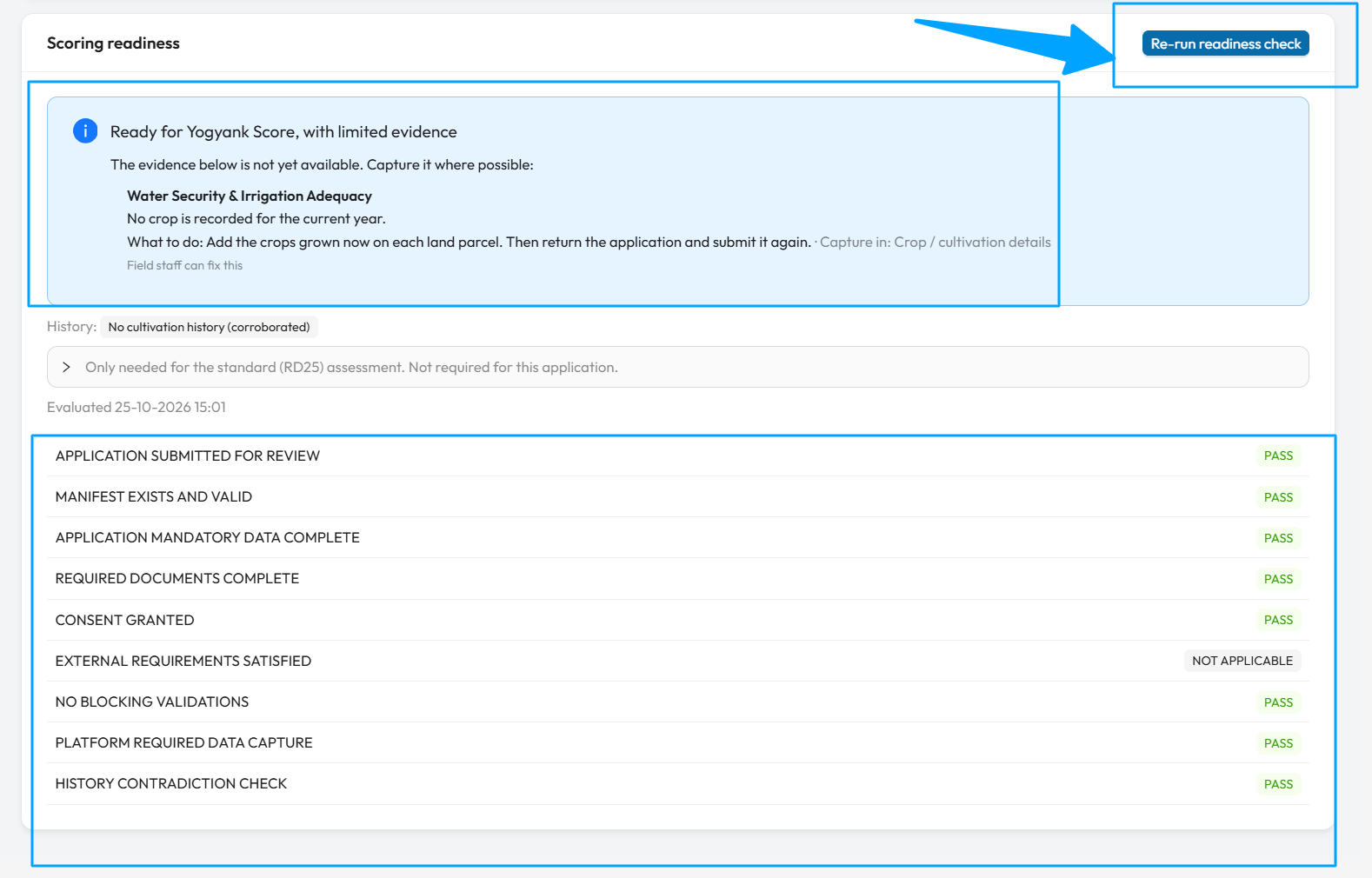
The arrows point to Re-run readiness check, to the result (here Ready for Yogyank Score, with limited evidence, with the evidence still to capture and where to capture it), and to the list of checks. Eight checks show Pass, and External requirements satisfied shows Not applicable.
Run the check
Select Run readiness check (or Re-run readiness check). Each run is kept as a permanent record, and the panel shows the latest. A fresh check is also run automatically every time a score is generated.
The result
| Result | Meaning |
|---|---|
| Ready for Yogyank Score | Everything needed is in place |
| Ready for Yogyank Score, with limited evidence | A score can be generated, but some evidence is missing. The panel lists what to capture |
| Ready, with approved exceptions | Ready because of approved waivers or exceptions |
| Not ready for Yogyank Score / Blocked | Something must be fixed first. The blockers are listed |
| Retry later | An external source did not respond. Run the check again later |
If you see Readiness check not available, scoring is not yet configured for your environment. Contact Arbix.
The checks
| Check | Passes when |
|---|---|
| APPLICATION SUBMITTED FOR REVIEW | The revision is submitted |
| MANIFEST EXISTS AND VALID | The submission snapshot is intact |
| APPLICATION MANDATORY DATA COMPLETE | Mandatory data is present |
| REQUIRED DOCUMENTS COMPLETE | Every required document is verified, or its waiver is approved |
| CONSENT GRANTED | Consent is recorded |
| EXTERNAL REQUIREMENTS SATISFIED | Required external data is available, or an exception is approved |
| NO BLOCKING VALIDATIONS | No validation errors |
| PLATFORM REQUIRED DATA CAPTURE | Each scored component has the evidence it needs (where configured) |
| HISTORY CONTRADICTION CHECK | The facts agree with earlier submissions (where configured) |
| Check status | Meaning |
|---|---|
| Pass | Met |
| Satisfied by exception | Met through an approved waiver or exception |
| Fail | Not met. The reasons are shown in red |
| Not applicable | Does not apply to this case |
Blockers
Under a failing check, a table lists exactly what is missing:
| Column | Meaning |
|---|---|
| Missing | The component or fact that is missing |
| Capture step | Where it is captured, e.g. Land holding, Crop / cultivation details or Farmer profile: Labour |
| State | Expected but missing (not yet provided), Temporarily unavailable (could not be fetched: try later), Not applicable, or Other proof available |
| How to resolve | What to do, and who can do it: Field staff can fix this or Needs the platform team |
How to fix a blocker
- Data about the farmer (parcels, income, labour and so on): the submitted snapshot cannot be edited. Return the application (3.11), let the Credit Assistant add the data, and have it resubmitted.
- Data from outside sources (satellite, market prices): refresh it in the External data panel, then run the readiness check again.
- Documents: verify them, or approve the waiver, then run the check again.
Recorded facts disagree
If the current facts contradict each other, or contradict an earlier submission, a red Recorded facts disagree box lists each contradiction. For example:
- An agricultural loan was opened before the farmer's cultivation start date.
- Cultivation is recorded before the farmer's cultivation start date.
- Farming experience is more than the years since the farmer started cultivating.
- A fact from an earlier submission was removed or changed without a recorded reason.
- An earlier submission shows a loan, but no prior formal credit is now recorded.
A contradiction always means Not ready.
Record a correction (Credit Officer)
Where a contradiction involves a record from an earlier submission, an officer with document.verify can explain it:
- Select Record correction next to the contradiction.
- Choose what happened to the record: Changed, Removed or Restored.
- Enter the reason. It is kept permanently, up to 2,000 characters.
- Select Record correction. You see Correction recorded. Run the readiness check again.
If the record is part of the current submission, correct it on its own screen instead: return the application and resubmit it.